
Author: ajtap
https://tryhackme.com/r/room/tsharkchallengesone
Tshark is a powerful command-line network protocol analyzer that serves as the terminal version of Wireshark, one of the most widely used network analysis tools. Tshark allows users to capture, analyze, and dissect network traffic across a wide range of protocols in real-time or from saved PCAP files. To learn more how Tshark works I recommend heading to the documentation https://www.wireshark.org/docs/man-pages/tshark.html
Step 1: Inspecting Protocol Hierarchy Statistics
To begin analyzing the teamwork.pcap file, we first need to understand the distribution of protocols within the capture. This can be done by viewing the Protocol Hierarchy Statistics (PHS). To do this, run the following command:
tshark -n -r teamwork.pcap -q -z io,phsThis will provide a breakdown of the protocols observed in the capture, showing their relative usage and hierarchy.
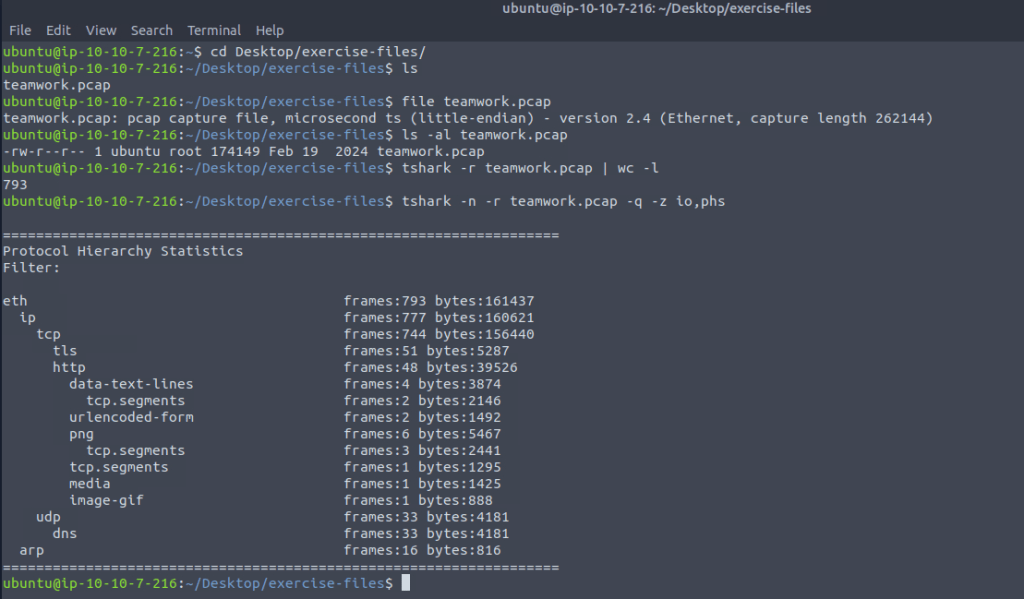
From the result, we can see several protocols present in the capture file. With this information, we can proceed to investigate the IP endpoints involved in the network traffic.
Step 2: Inspecting IP Endpoints
Next, we want to identify the IP endpoints participating in the captured traffic. By using the following command, we can list all the IP addresses seen in the packets:
tshark -n -r teamwork.pcap -q -z endpoints,ip
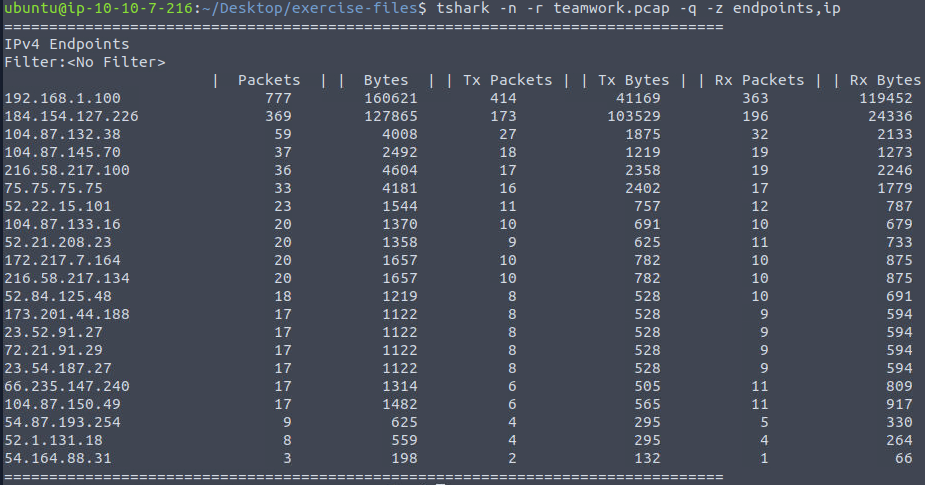
The output shows a range of IP endpoints, some of which are public IPv4 addresses. Notably, there is traffic involving the IP 184[.]154[.]127[.]226, which stands out as potentially suspicious.
Step 3: Analyzing DNS Traffic
To further analyze the activity within the capture, we can examine the DNS queries. Since we are particularly interested in resolving standard A records (IPv4 addresses), we use the following command:
tshark -r teamwork.pcap -Y "dns.qry.type == 1"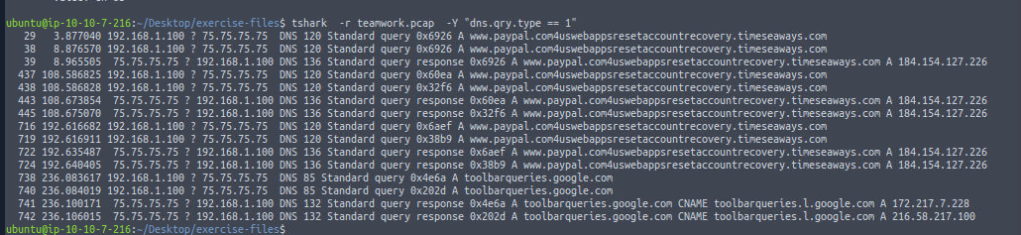
The results show that two DNS domains were queried in the traffic. This could give us insight into the network activity and potential destinations being contacted.
Step 4: Analyzing HTTP Traffic
Now, let’s turn our focus to the HTTP traffic by checking both the client requests and server responses. This can be accomplished using the following commands:
# To get HTTP statistics:
tshark -n -r teamwork.pcap -q -z http,stats
# To inspect client HTTP requests:
tshark -n -r teamwork.pcap -q -z http_req,tree
# To inspect server HTTP responses:
tshark -n -r teamwork.pcap -q -z http_srv,tree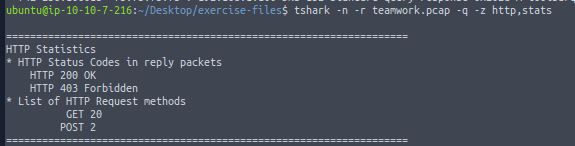


From the results, it is clear that there is interaction between the client and a domain of interest. This leads us to inspect specific HTTP requests, particularly POST requests, to gather more information.
Step 5: Inspecting HTTP POST Requests
To determine what information was sent during HTTP POST requests (which often contain form submissions such as login details or user inputs), we filter the HTTP traffic with the following command:
tshark -n -r teamwork.pcap -Y "http.request.method == POST" -V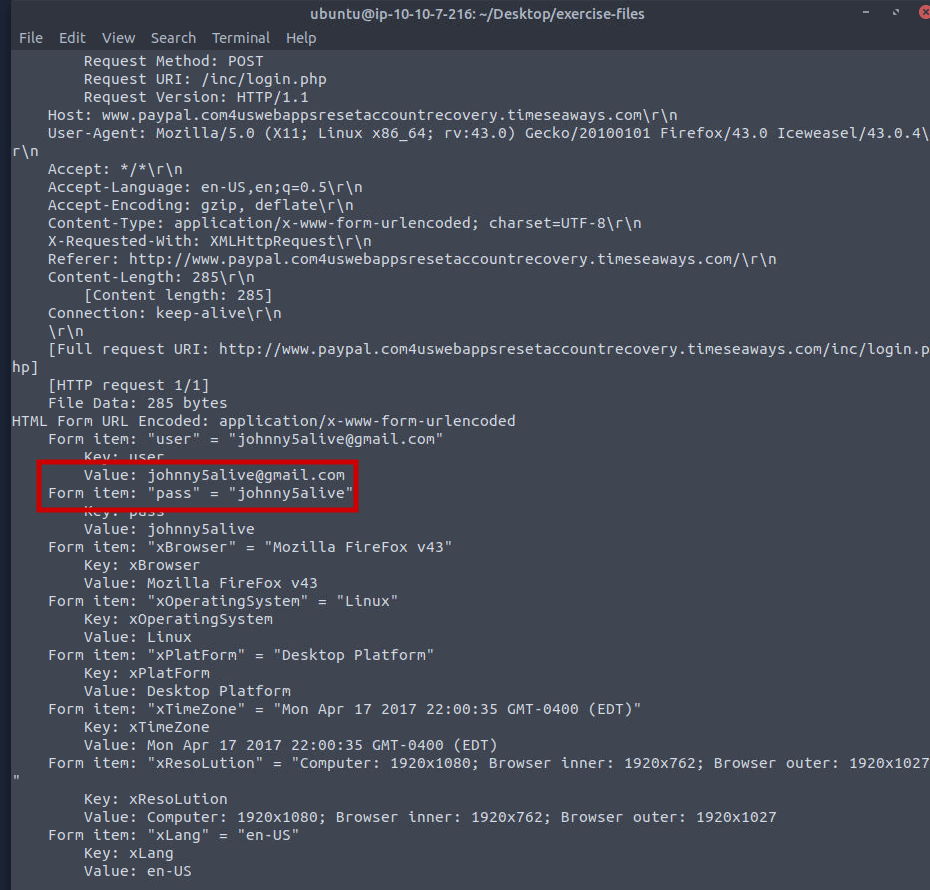
Upon further inspection of the POST request, we can see the user’s submitted email and password, confirming that the user fell victim to a PayPal phishing scam.
Step 6: Checking in VT
Upon further inspection of the POST request, it is evident that the traffic is directed towards a potentially malicious domain. By cross-referencing the URL with VirusTotal, we find that the URL is flagged as a phishing website.
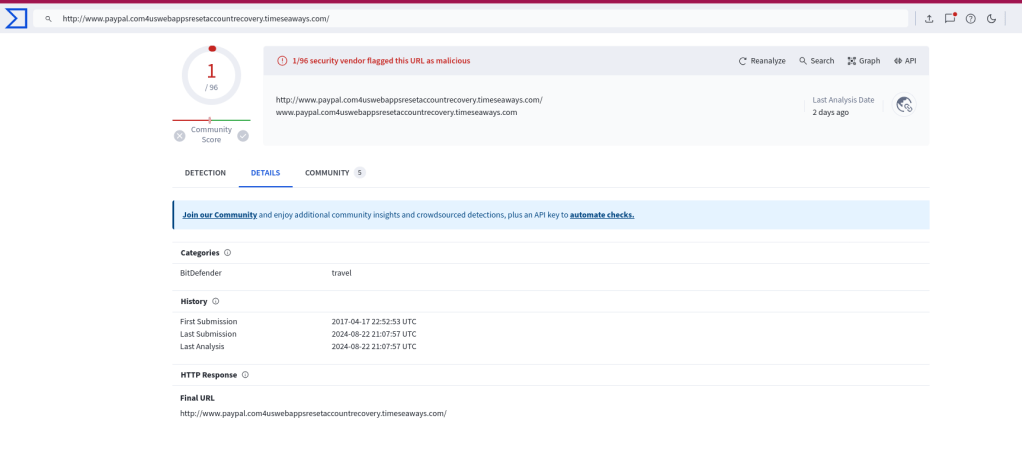
This confirms that the URL we discovered has also been reported in VirusTotal as associated with a phishing email.
Questions
1. What is the full URL of the malicious/suspicious domain address?
hxxp[://]www[.]paypal[.]com4uswebappsresetaccountrecovery[.]timeseaways[.]com/
2. When was the URL of the malicious/suspicious domain address first submitted to VirusTotal?
2017-04-17 22:52:53 UTC
3. When was the URL of the malicious/suspicious domain address first submitted to VirusTotal?
PayPal
4. What is the IP address of the malicious domain?
184[.]154[.]127[.]226
5. What is the email address that was used?
johnny5alive[at]gmail[.]com
Conclusion
Tshark proves to be a highly versatile tool for efficiently triaging PCAP files. While it may have a steep learning curve, mastering the methodology of analyzing each protocol layer step-by-step and becoming familiar with its syntax can be a game-changer. This knowledge significantly enhances the speed and accuracy of PCAP analysis, making Tshark an invaluable asset for network traffic investigation.
If you’re interested in analyzing PCAP files even faster with built-in Zeek detection, without the need for manual Bash commands, check out Zui
Thanks for Reading! We hope you enjoy this writeup, Happy Grinding Shinkens!


 ShinkenSec
Leave a comment